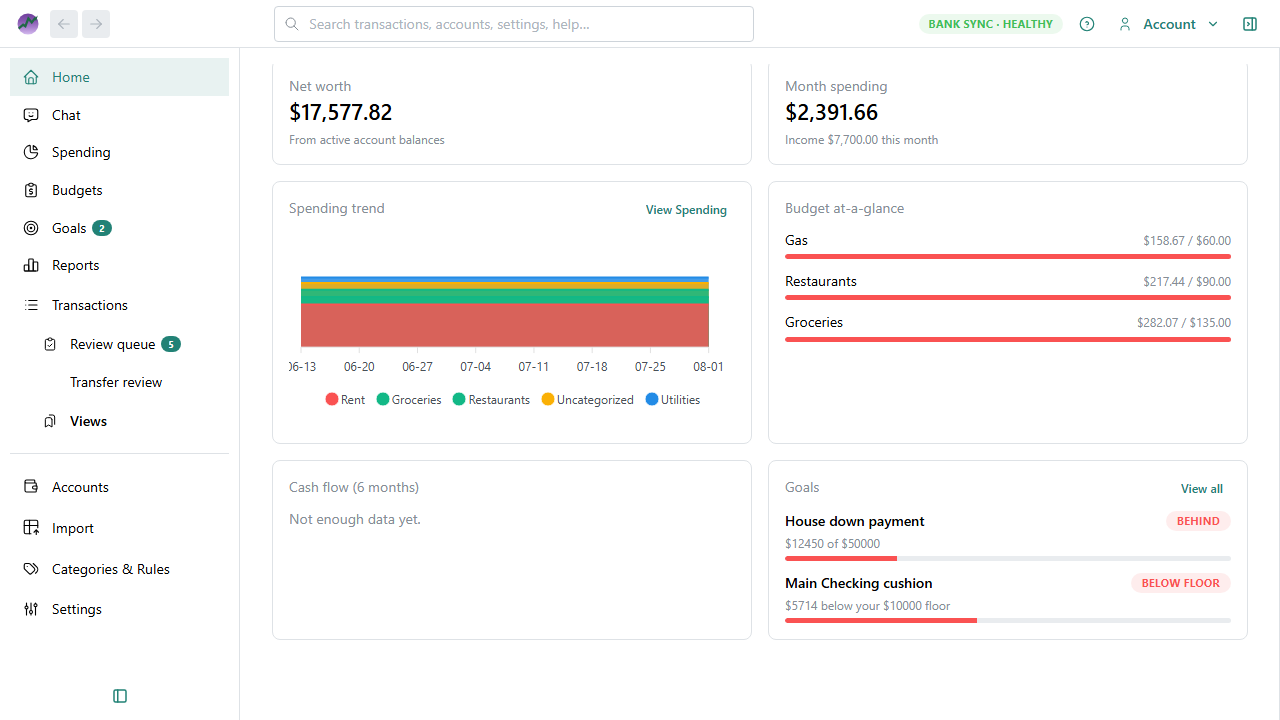
Dashboard
The Home dashboard answers “how am I doing?” at a glance. It shows a small set of summary widgets you can turn on or off and reorder — no complex layout editor, just the highlights that matter most.
Getting started (empty data file)
When your unlocked, licensed data file has no accounts yet, Home shows a Getting started panel instead of the summary widgets. Use it to:
- Connect with SimpleFIN — open Settings → Bank integration (SimpleFIN is a separate third-party fee)
- Create account — add your first account on Accounts
- Import transactions — open Import for a CSV, QFX, or OFX file
Until you add an account, most other navigation sections stay unavailable. See First steps on Home and Onboarding.
After you create at least one account, Home switches to the normal widgets.
Action required and AI chat
Above the summary widgets, Home may show:
| Surface | When it appears |
|---|---|
| Chat about your finances | When Enable AI is on in Settings — a full-width invite at the top of Home (above Action required). It uses the page background with no card border so it reads as part of the page. Type a question in the centered box and press Enter or click send to open Chat with that new conversation selected |
| Action required | When you have pending work (import review, bank sync follow-up, categorization, transfers) |
If AI is disabled, the chat invite is hidden. See AI assistant and Using AI Chat.
Preconfigured widgets
| Widget | What it shows |
|---|---|
| Net worth | Total across your active accounts (assets minus liabilities) |
| Account balances | Each active account with Track balance on — current balance (bank balance when available, with as of date), and last transaction date — click an account to open its register |
| Month spending | Expense total for the current calendar month |
| Spending trend | Last 8 weeks of spending by top-level category |
| Budget at-a-glance | Up to three budget lines with the most progress this month |
| Goals at a glance | Up to three goals that need attention — click through to goal detail |
| Cash flow sparkline | Recent monthly income vs expense when enough data exists |
Customizing your dashboard
Open Home and use the Customize control (gear icon) to:
- Show or hide any widget from the catalog above
- Reorder widgets with move up / move down controls
Your choices are saved automatically and persist between sessions.
What updates when
| Change | Effect on dashboard |
|---|---|
| New categorized transaction | Month spending and budget widgets update on refresh |
| Category or tag fixed from Spending | Spending trend and month spending reflect the corrected transaction |
| Account balance changes | Net worth updates immediately (from preferred balances) |
| Budget targets edited | Budget at-a-glance reflects new targets |
| Next daily snapshot | Net worth history chart (on Reports) gets a new point — see Net worth |
Transfers between your own accounts do not count toward month spending.
The Spending trend widget uses the same spending rules as the full Spending page. Click a week or category in the widget to open Spending with matching filters.
Account balances
Shows every active account with Track balance on. The amount is the bank’s current balance when your connection has stored one (with an as of date); otherwise it is the register ledger total. Accounts with Track balance off (for example many Payment app accounts such as PayPal) are omitted. Use the last-activity line to spot accounts that may need a sync or import. Click an account tile to open its transaction register.
When the bank and register disagree after the first sync, see Align register to bank balance.
Goals at a glance
Shows up to three active goals that need attention, with headline and status. Example: House down payment — "$8,200 of $50,000 saved" with an On track pill. Click a goal name to open its detail page. Use View all to open Goals.